A Guide to Creating Custom AI Templates in Straico

How Custom Templates in Straico Increase Productivity
In today's fast-paced business world, productivity plays a key role in success. And that's where Straico comes in. PUsage templates in Straico Allows businesses and freelancers to manage their resources efficiently while minimizing the errors that often occur during manual data processing. Using Artificial IntelligenceStraico can transform your information and content creation workflows, making them smoother and less time-consuming.
By automating your personal repetitive processes, you free up your time for more important and complex tasks that require human intelligence and creativity, and for your personal life. Imagine having a faithful assistant who is always ready to take on the routine, allowing you to concentrate on strategic development.
Custom templates give you the ability to customize Straico to your specific needs to increase efficiency, improve data quality, and even improve decision-making.

Introduction to Custom Templates in Straico
When it comes to creating custom templates in Straico, it is important to understand that this is not just an option, but a whole system that makes life easier and increases productivity. Custom templates allow you to structure and automate processes, making Straico an incredibly powerful tool for any business.
Creating templates is based on the idea of personalization. We are all different, and our business processes are unique. By creating templates, you adapt the system to your requirements, turning Straico into a Personalized AI Center.
This approach not only simplifies everyday tasks, but also contributes to the creation of a single workspace where all processes are integrated and interconnected. If you haven't tried creating custom templates in Straico yet, it might be time to break new ground for your business.
How AI-powered process automation makes things easier
Straico is a powerful tool that uses artificial intelligence to solve various problems. Creating custom templates in Straico allows you to automate repetitive processes and increase efficiency. In this guide, we'll take a closer look at each step of creating a template so you can get the most out of Straico.
Before we get into creating templates, let's take a look at why they're so useful:
- Time saving:
Templates allow you to avoid entering the same instructions repeatedly, saving you time and effort.
- Consistency:
Using templates ensures that all tasks are performed consistently, regardless of who performs them.
- Improved organization:
Templates help streamline your workflows and simplify project management.
- Increased productivity:
Automating tasks with templates allows you to focus on more important aspects of your work.
Step-by-step guide to creating a template in Straico
Creating a template in Straico is an intuitive process, but to make it as efficient as possible, it's important to follow simple steps. Here's a step-by-step guide.
Step 1: Create a template
Go to templates
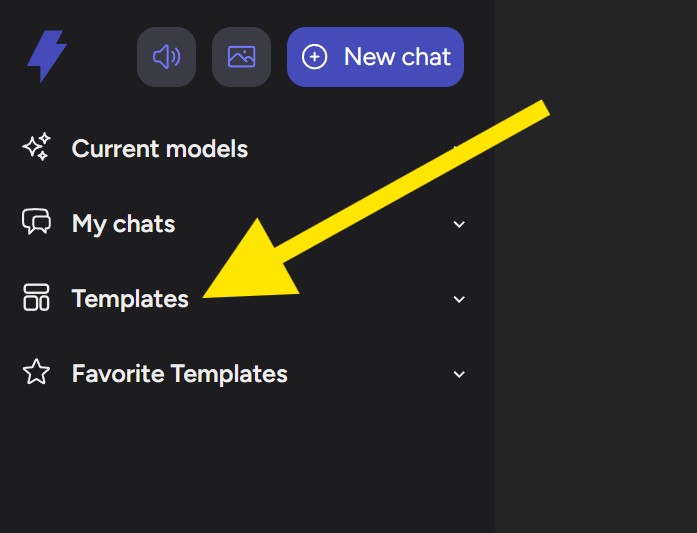
Start by finding the icon Templates on the left sidebar of your Straico workspace . Clicking on this icon will take you to the Templates area, where all your custom templates are located.
Start creating a template
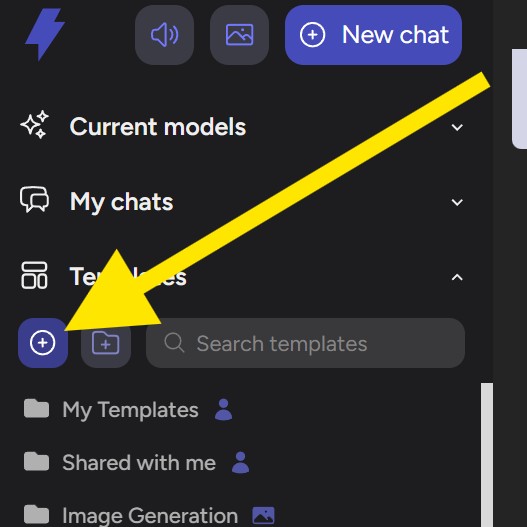
Once in the Templates area, click Plus (+) . This action opens a new window where you will start creating your new template.
Select template creation mode
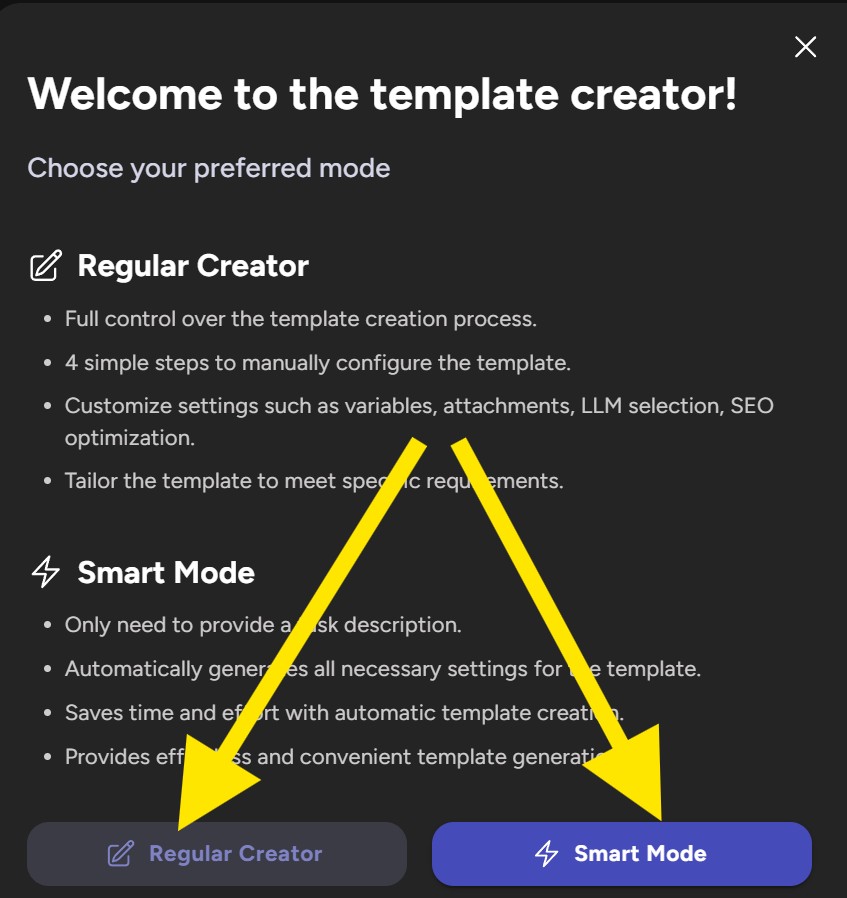
The user has 2 modes for creating a personal template
Common Creator:
- Full control over the template creation process.
- 4 simple steps to manually customize the template.
- Configure parameters such as variables, attachments, LLM selection, SEO optimization.
- Adapt the template to meet your specific requirements.
Smart Mode:
- You only need to provide a description of the task.
- Automatically generates all the necessary settings for the template.
- Saves time and effort by automatically creating templates.
- Provides easy and convenient template generation.
If you don't have any experience in creating templates or want to save time, it's best to start with Smart Mode.
Step 2: General Settings in Smart Mode
Template Purpose Description
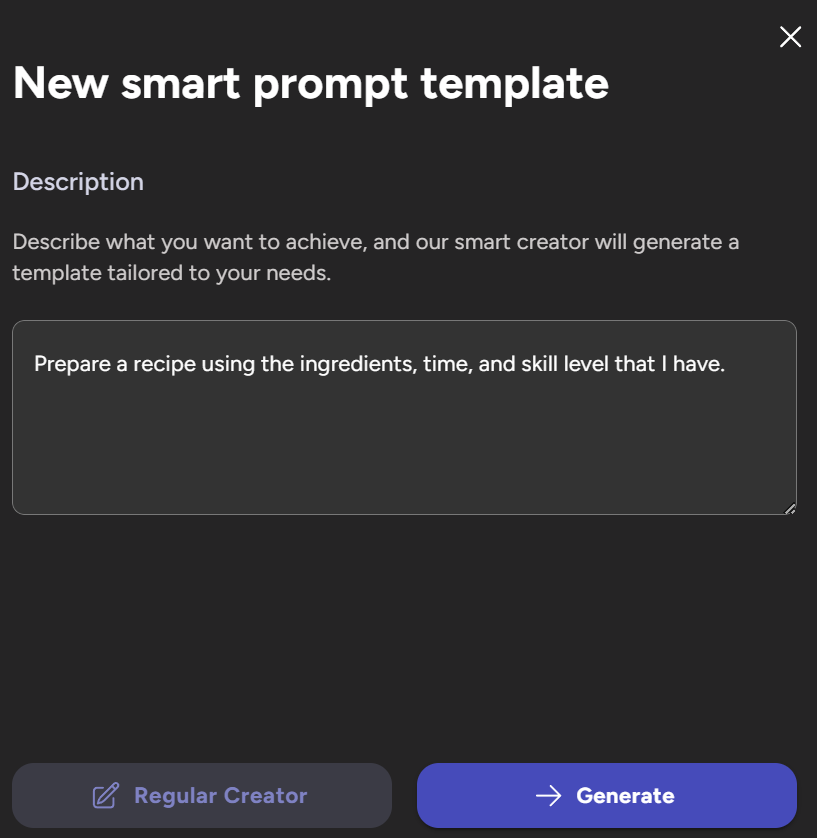
Describe what you want to achieve, and a smart builder will create a template that fits your needs. For example: "Cook a recipe using the ingredients, time, and skill level I have".
Step 3: Make changes to the template (if necessary)
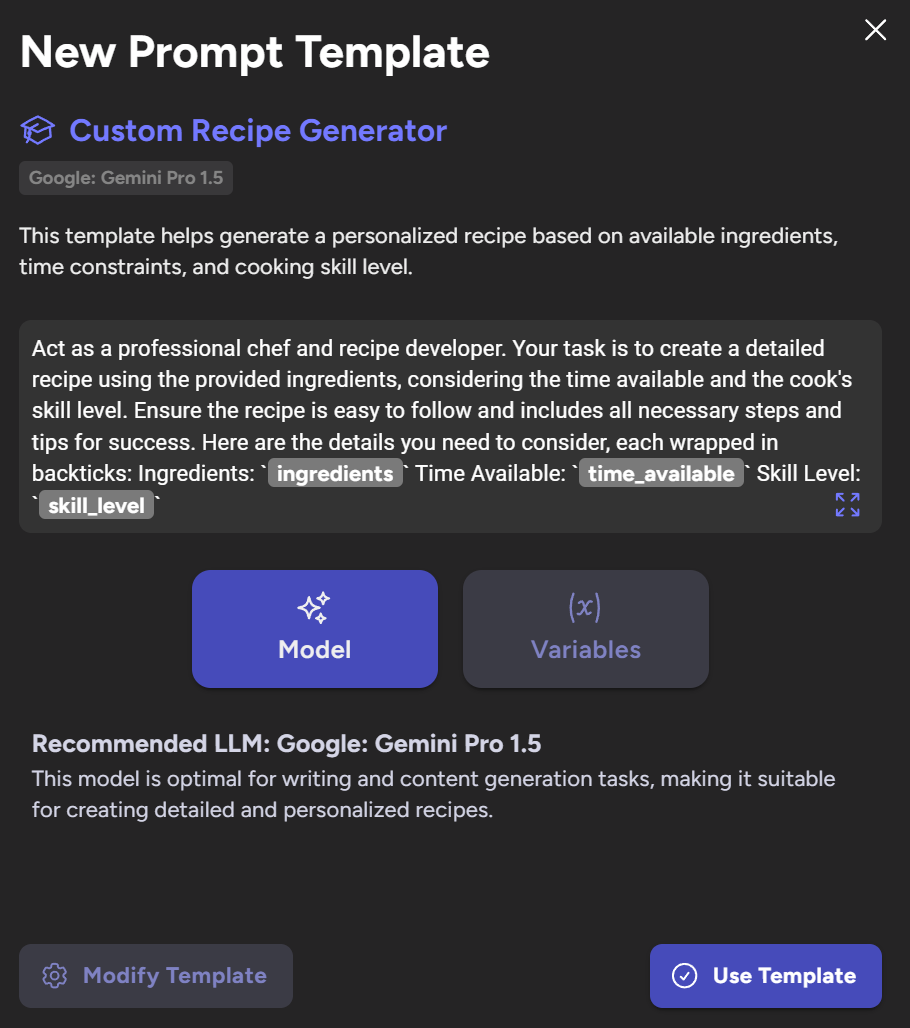
At this stage, you can modify or save the created template without editing it. Template modification consists of 3 steps.
Step 1: General adjustments
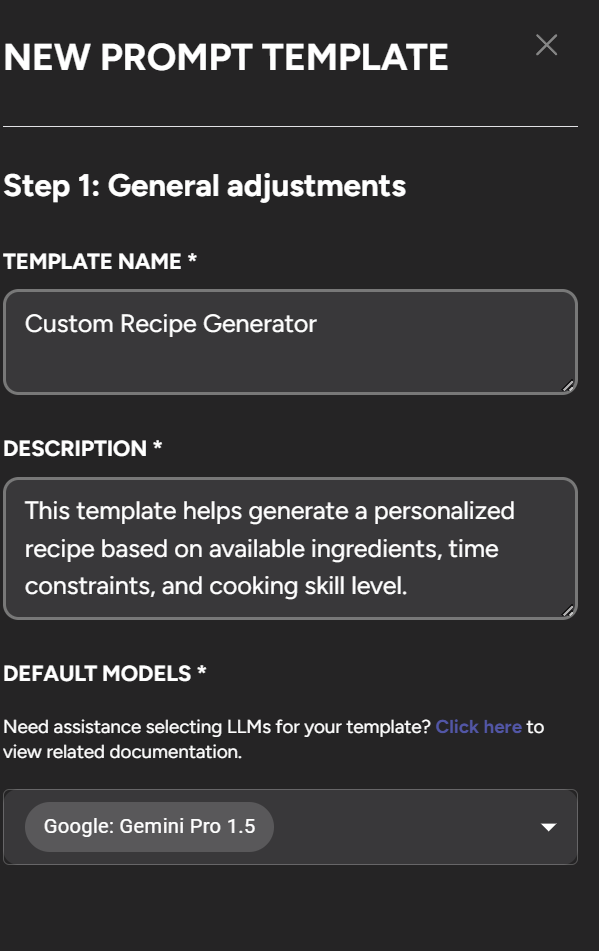
You can edit the name, description, and suggested AI models. You can choose from 1 to 4 generative AI models from a wide list of available models (more than 40). The models selected for the template will process the user's request in parallel.
Step 2: Prompts and Variables Workspace
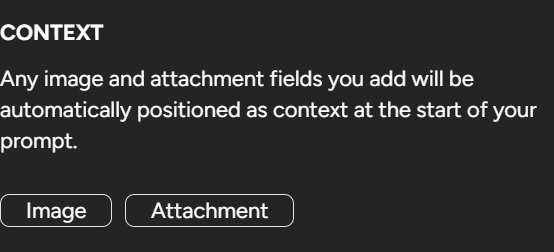
At this point, you can create a CONTEXT, change the PROMPT, and change the VARIABLES. To create a duplicate Context, you can attach files that will be placed at the beginning of each of your requests. You can use images and different types of documents to create context.
In the prompt window, you can make edits to the text of the task:
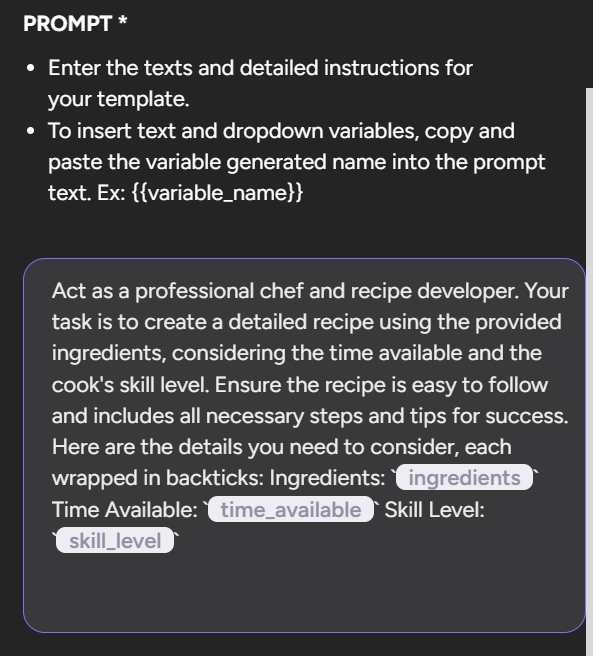
Write detailed instructions that define how your template should function. Use clear and specific language to guide your AI models to achieve the desired outcomes.
Check the created Variables. They allow you to customize the template for different tasks, making it more flexible and versatile. Variables act as placeholders inside the prompt, which you can replace with different information each time you use the template.
For example, if you're creating a template for writing emails, you can use variables for the recipient's name, subject line, and message body. Or, if you're creating a template to generate reports, you can use a variable for the company name.
To insert text and drop-down variables, copy and paste the generated variable name into the prompt (tooltip) text. For example: {{variable_name}}
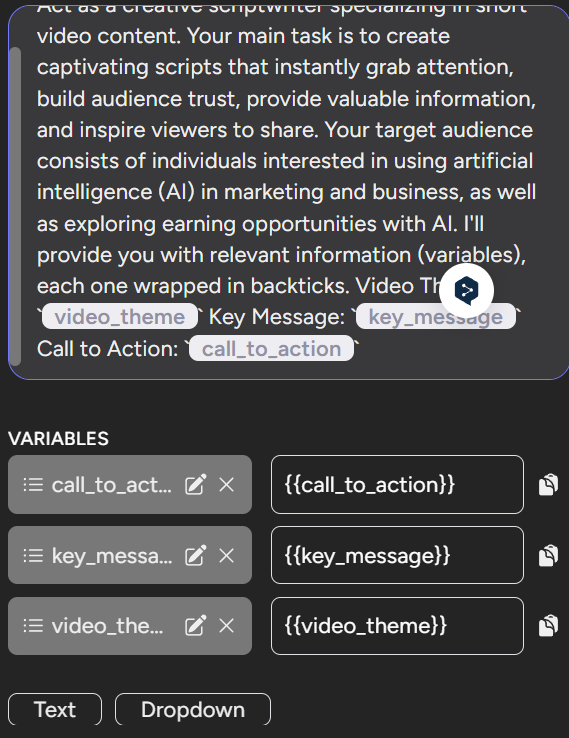
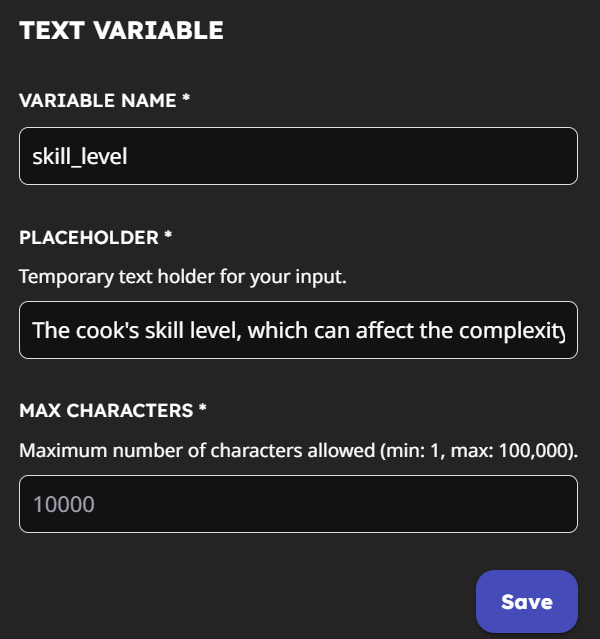
Each variable has 3 elements: a name, a text placeholder (a hint for the user), a maximum number of characters:
Step 3: Review and save the prompt template
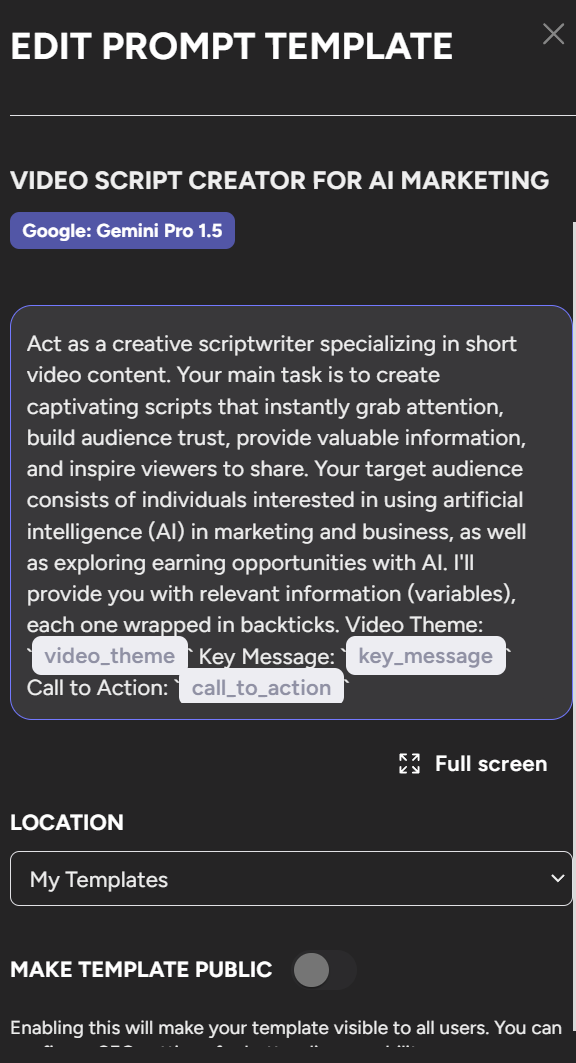
Before you save a template, it's crucial to check it carefully for errors and make sure that all elements are properly integrated. Make sure the correct AI models are selected, the query is clear and concise, and the variables are properly integrated. A thorough check at this stage will help avoid problems and errors when using the template in the future.
You can save the template in a specific folder for better organization or leave it in the default My Templates folder.
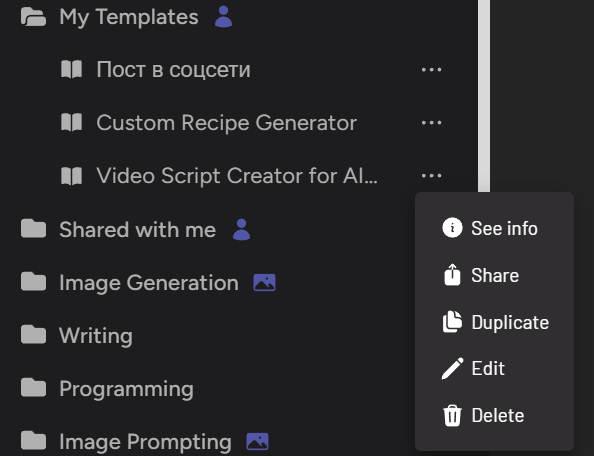
If you want to share your template with others, you can make it public. To do this, click "Create Public". You can easily share your template after creating it as well. To share a template, click on the three dots next to the template name and select "Share". You can grant view or edit access, depending on what level of access you want to grant:
By following these steps, you will be able to create powerful and effective templates that will not only save you time but also improve the quality of your work.
Tips for Using Straico Effectively for Business
To make the most of the opportunities Straico For your business, there are a few key tips to consider. First, start with a clear understanding of your business processes and determine which ones can be automated with Artificial Intelligence.
Regular training and updating the team's knowledge of new features and capabilities of Straico also plays an important role. Investing in employee training can help you implement new solutions faster and get the most out of it.
Maintain close interaction with the Straico support team. They can offer you best practices and help you solve possible problems.
Finally, always aim not only to increase efficiency, but also to improve the quality of the services provided. By using these tips, you can make the most of Straico's process automation capabilities and strengthen your business's position in the market.

Time-Burning Lies: Why Neural Networks Hallucinate Through Links and How NotebookLM Saves From Fakes
Teable.ai Review: A Powerful AI Alternative to Airtable and App Builder Credit Trap

🎙️ How To Create The Perfect AI Voice Clone In 2026 (And Get Away From Subscriptions For Good)