Microsoft Edge 2025: AI tools that really accelerate work
New features are available starting with Microsoft Edge version 125.0 and above. By the way, at the time of writing this review, I have: Version 140.0.3485.54 (Official build) (64-bit).
To check your version:
1. Open Edge
2. Go to (⋯) → Help & Feedback → About Microsoft Edge
3. The browser will automatically check for updates and show the current version
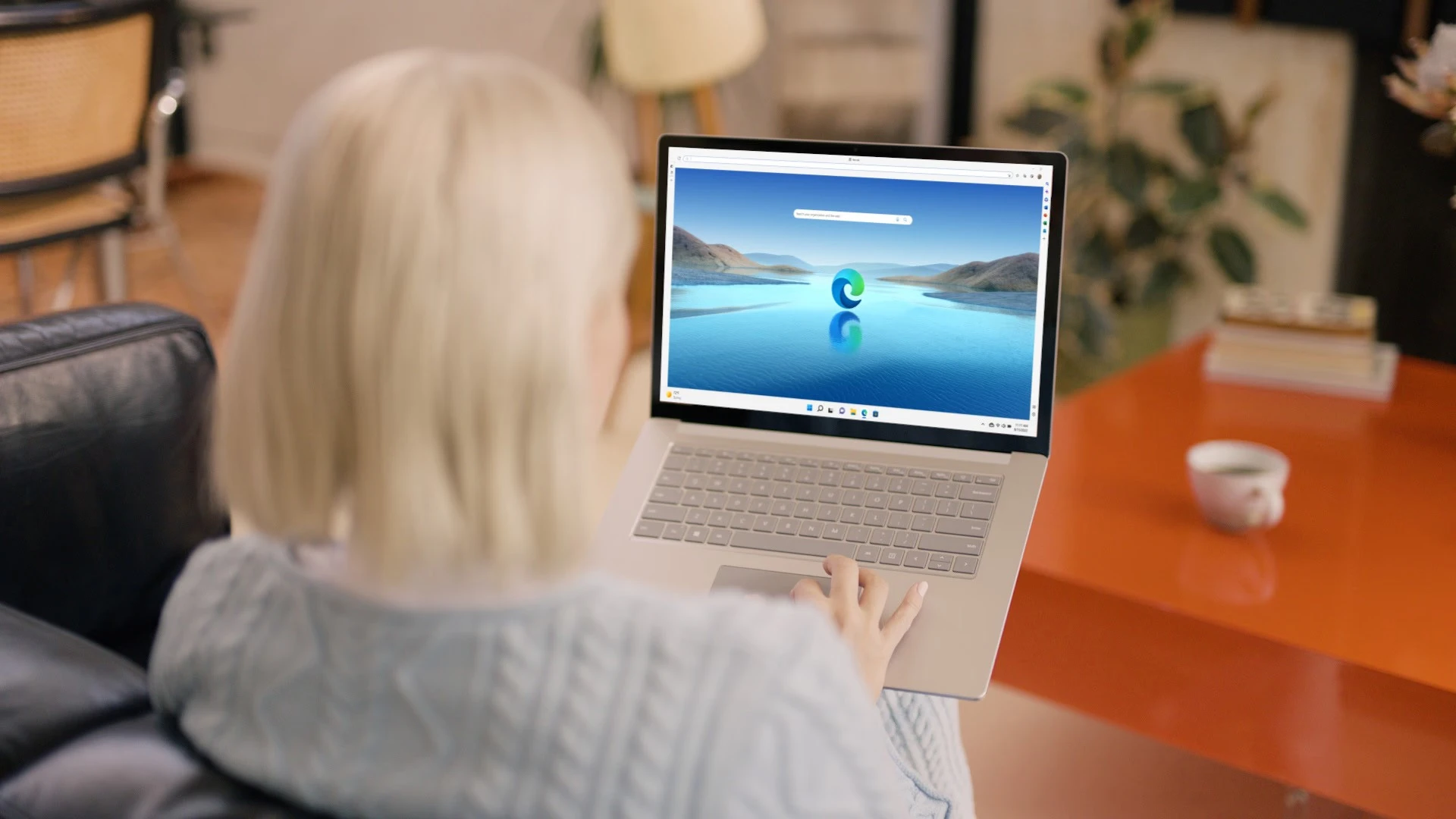
🔑 Key Innovations:
- Copilot - AI assistant based on GPT-5, who understands the context of the page and helps with texts, analysis, ideas
- Split Screen – dividing the browser window into two parts: convenient for comparison, notes, translation
- Collection — thematic stacks of links, images and notes
- Immersive Reading Mode and Read Aloud – for comfortable perception of the text
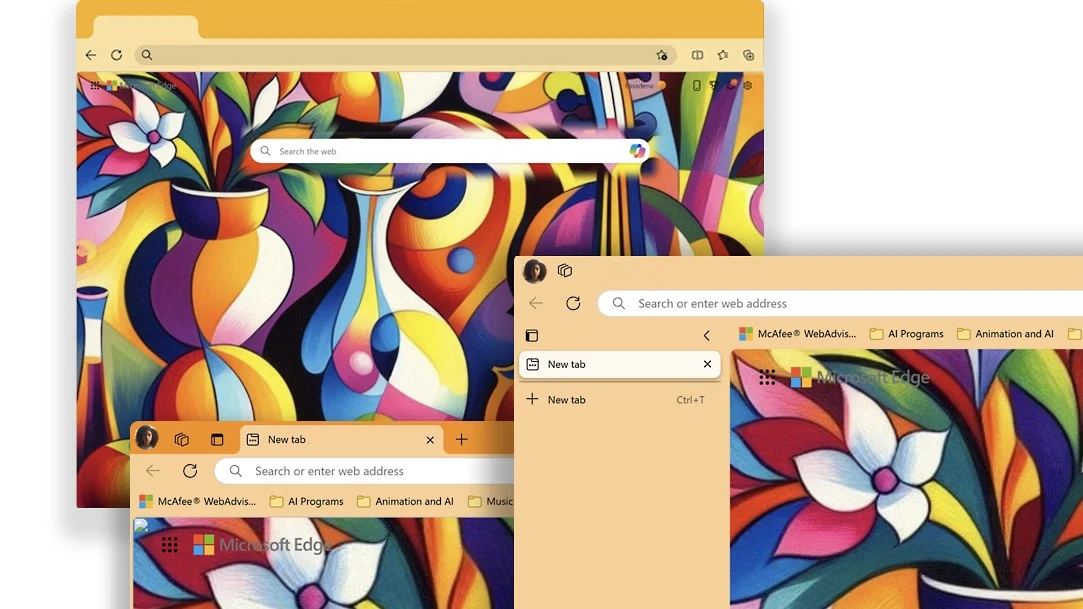
- AI Theme Generator — creating a visual browser theme based on the description
Copilot and AI tools
Contextual responses by page:
Copilot understands the open tab, can explain the chart, highlight the essentials, check the facts, and generate insights.
How to Enable
- Sidebar → Copilot: icon in the upper right corner.
- Share page content: make sure the panel is open – then Copilot "sees" the tab.
Summarize videos and texts:
Quickly compress long articles and videos with subtitles.
How to use
- Ask briefly: "Make an outline in 5 points" or "Highlight risks/conclusions".
- Format the query: "Plus/minus table", "Task list".
Text and image generation:
Posts, emails, ideas — and visuals for rough design.
Tips
- Iterations are more important than prompt length: Clarify in steps, not with one "perfect" query.
- Add context: audience, tone, length limits, medium of publication.
AI Theme Generator:
personal browser themes based on the text description. A quick way to visually "separate" work/personal profiles.
Flowless Switching: Sidebar and Multitasking
Sidebar with applications:
Outlook, Calendar, Tasks, Translator, Notion, and more are next to the current page. You can add your own sitelinks to the dashboard.
- How to Enable
- Settings → Sidebar: Pin the necessary applications, set keyboard shortcuts.
Split Screen:
divide the window in half: document on the left, research or Copilot on the right.
- Hotly
- Alt+[, Alt+] or the Split button in the URL bar (depends on layout and build).
Vertical tabs and groups:
More visibility, grouping by projects, minimizing "noisy" branches.
- Tips
- Right-click on tabs → Enable vertical tabs.
- Group color labels: The context is instantly read.
Collections: Save articles, notes, images, links in thematic stacks.
- Techniques
- One collection = one source of the project: Specifications, refs, resources, drafts.
For study and content
- Immersive Reader:
Clean text, spacing, font size, line focus.
- Launching
- "Book" icon in the address bar or the page's context menu.
- Read Aloud:
Natural voices, reading speed, listen like a podcast.
- Useful
- For checking the text with your "ear", learning languages and saving your eyes.
- PDF Editor:
Annotations, captions, handwritten notes, saving to OneDrive.
- Shortly
- Closes 80% of tasks without third-party tools.
- Web Capture:
screenshots with scrolling and markup directly in Edge.
- Use
- For reviewing designs, bug reports, and visual notes.
Shopping, Pricing, and Comparison
- Coupons & Promo Codes: Automatic search and application at checkout.
- Price History & Comparison: Dynamics graph and similar offers on other sites.
- Wish lists: Track the price decline without keeping everything in your head.
- Use
- Real savings and fewer "impulse" purchases.
Security and privacy
- Microsoft Defender SmartScreen: Warnings about phishing and malicious sites.
- Password Monitor and Password Manager: Leak check, generation, auto-fill.
- Sandboxing for extensions and strict permissions: Fewer surprises with third-party extras.
- Efficiency Mode: Save battery and memory while working hard.
- Tuning
- edge://settings/system → Performance optimization.
Quick Start: 7 Steps to Feel the Difference Today
- Turn on the sidebar.
- Set up Copilot, Mail, Calendar, Translator, Notes.
- Switch to vertical tabs.
- Group by project, set the color of the groups.
- Master Split Screen.
- Research + document, video lecture + synopsis, website + Copilot.
- Collect "Collections" for your current tasks.
- References, materials, files, notes — in one place.
- Read smarter.
- Immersive Reader + Read Aloud for long texts.
- Add AI to your routine.
- Summarizerization, structure generation, wording check, rough illustrations.
- Tweak your security.
- Check passwords, turn on warnings, limit "gluttonous" sites.
Who is it especially valuable for?
- For content creators: quick briefs, post structures, draft visuals, ref collections.
- For teachers and students: Notes, 朗read aloud, PDF notes, two sources on one screen.
- For Products and Researchers: comparison, tab labels, scrolling screenshots, quick pros/cons tables via Copilot.
- Marketers: competitor page analysis, creative ideas, price control, and coupons.
✍️ Examples of quick prompts for Copilot
- "Make a brief summary of this article in 5 points"
- "Compare the pros and cons of two products on the page"
- "Generate an Instagram post idea based on this page"
- "Suggest a browser design theme in the style of minimalism + pastel colors"
- "Make a Table: Pros and Cons of Using AI in Education"
✅ Checklist: how to enable and use
- Enable Copilot Sidebar -> The icon at the top right → "Copilot"
- Activate Split Screen -> Split Screen button in the address bar
- Create a Collection -> ⋯ menu → Collections → Create New
- Enable Immersive Reading Mode -> "Book" icon in the address bar
- Listen to the text aloud -> Right-click → "Read aloud"
- Generate Browser Theme -> Settings → Themes → Create with AI
⚠️ Commercial Use of Images
Images created with Copilot are not considered copyrighted because they are not human-made in a legal sense. This means:
- You can use them in commercial projects (for example, in design, advertising, social networks, products)
- But you cannot register the copyright to such images
- On photo stocks (for example, Adobe Stock), such works are accepted if it is indicated that they are created by AI and do not violate the rights of others
💡 It is recommended to make creative refinements (composition, retouching, text) to increase the legal protection and value of the image.
⚠️ Problems that are still relevant
Despite its strong development, Microsoft Edge faces a number of technical and user challenges in 2025:
🔄 Performance and resources
- High memory and CPU load With a large number of tabs or active extensions
- Automatic tab reloading If the memory limit is exceeded, it can interfere with working with documents and forms
- DevTools erratic behavior when debugging React/Angular applications — especially in WebView2
🔐 Privacy and security
- Telemetry collection even in InPrivate mode - Raises questions from privacy-focused users
- Complex privacy settings — many parameters are hidden or not obvious
- Chromium vulnerabilities Edge depends on the speed of V8 engine updates, making it vulnerable to zero-day exploits
🧩 Compatibility and Extensions
- Unstable support for CSS and WebAssembly - Complicates cross-browser development
- Expansions with high memory consumption Microsoft is testing automated alerts, but not yet a stable implementation
📥 Download the full Microsoft Edge checklist 2025
The full version of the checklist with hotkeys, use cases, prompt examples, and useful links is available in PDF format.
📎 Download the checklist in Telegram (https://t.me/AIContentCreators/515)
Format: A4 Language: Russian Author: Alexander Bochkala
The checklist is suitable for:
- students and teachers
- marketers and designers
- product managers and researchers
- anyone who works with content and AI tools in a browser
🧭 Conclusion: Edge as a platform – with potential and challenges
Microsoft Edge 2025 is no longer just a browser, but a flexible digital environment that combines an AI assistant, visual tools, an app sidebar, and features for learning, analysis, and creativity. It covers up to 80% of tasks without the need to switch to third-party services — from content generation to price comparison and working with PDFs.
💪 Strengths:
- Copilot — contextual AI that can analyze the page, generate ideas, create plus/minus tables, write texts, and even design visual themes
- Split Screen and Sidebar - Multitasking without switching between windows
- Collections and vertical tabs — convenient organization of information on projects
- Immersive Reader and Read Aloud – comfortable perception of long texts and audio format
- Integration with Outlook, Calendar, Tasks, Notion - Workspace inside the browser
- Shopping Tools – Price tracking, coupons, wishlists
- Security – SmartScreen, sandbox for extensions, password monitoring
⚠️ Limitations and challenges:
- Performance: High memory load with multiple tabs, DevTools instability
- Privacy: telemetry even in InPrivate mode, complex privacy settings
- Compatibility: unstable CSS/WebAssembly support, high resource consumption extensions
- Chromium Dependency: Engine vulnerabilities and delays in security updates
🔮 Vector of development:
Microsoft is actively developing Edge as an AI-core platform. Upcoming releases include:
- Copilot Feature Enhancement: Table Analysis, PDF
- New APIs and CSS features for developers
- Simplify the security interface and eliminate legacy components
- Automatic alerts for voracious extensions
Edge 2025 is a browser for those who work with information, create content, learn or research. It is not perfect, but its potential lies in integration, speed, and the ability to adapt to the user's tasks.
If Microsoft continues to address productivity and privacy concerns, Edge could become not just an alternative, but a democratic and accessible standard for digital productivity.